
Just having a little fun with one of my favorite shots from Czech Days 2007. I loved Kaitlin's stance and the way that she was 'framed' by the other dancers, but felt it could be even more dramatic with a little photoshop play.
The Original
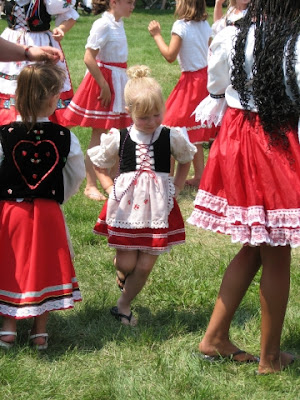
Kaitlin in Color Only Kaitlin's Costume in Color
I used the same process to produce both altered versions (using Photoshop Elements 4):
- Open photo in Photoshop
- Right click on the photo in the layers palette (on the right)
- Select ‘Duplicate Layer’, name your layer and click ‘OK’
- Select your new duplicate layer
- Pull down the ‘Create Adjustment Layer’ menu and select ‘Hue/Saturation’
- Adjust the saturation to -100, click ‘OK’
- Click on the ‘Zoom’ tool in the left sidebar and zoom in on your photo so that you can easily see your edges
- Click on the ‘Eraser’ tool in the left sidebar
- In the bar just above your photo, choose your brush type and size (totally depends on the level of detail in your photo and the degree you zoomed in on your photo – choose levels you are comfortable with)
- Start ‘erasing…you should see you color copy (the background) begin to show through
- When you are finished, pull down the ‘Layer’ menu and select ‘Flatten Image’
- SAVE
The full color picture is my
ReplyDeletefavorite with the one of Kaitlin
only in color second and the one
with only Kaitlin's costume in color comes in third. Regardless,
she is too cute!
I like #2 the best. Next would be the first. I think the third is cute, but it would be better if it was just your daughter without all the background girls for that one to work. Cute though!
ReplyDelete